
Add the keywords whose Google positions you want to follow for a client. Your plan includes a set number of keywords for each client; any beyond that use credits each month.
Steps
-
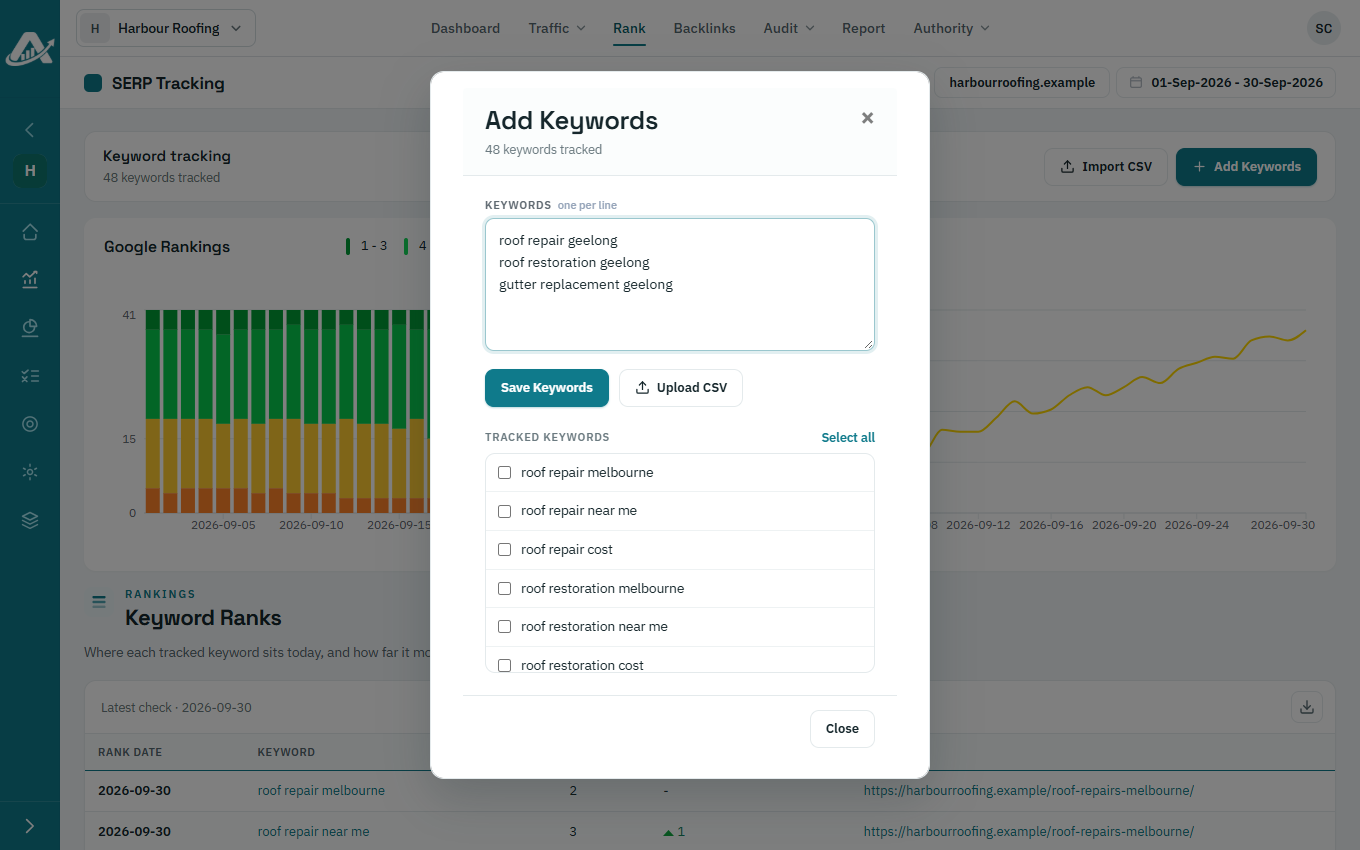
Open the client’s project, click Rank in the top menu, then click Add Keywords.
-
Type the keywords, one per line, and click Save Keywords. To add a list from a file instead, click Upload CSV and choose a file with one keyword at the start of each line.
-
To stop tracking keywords, tick them under Tracked keywords and click Delete. Their ranking history is kept.