
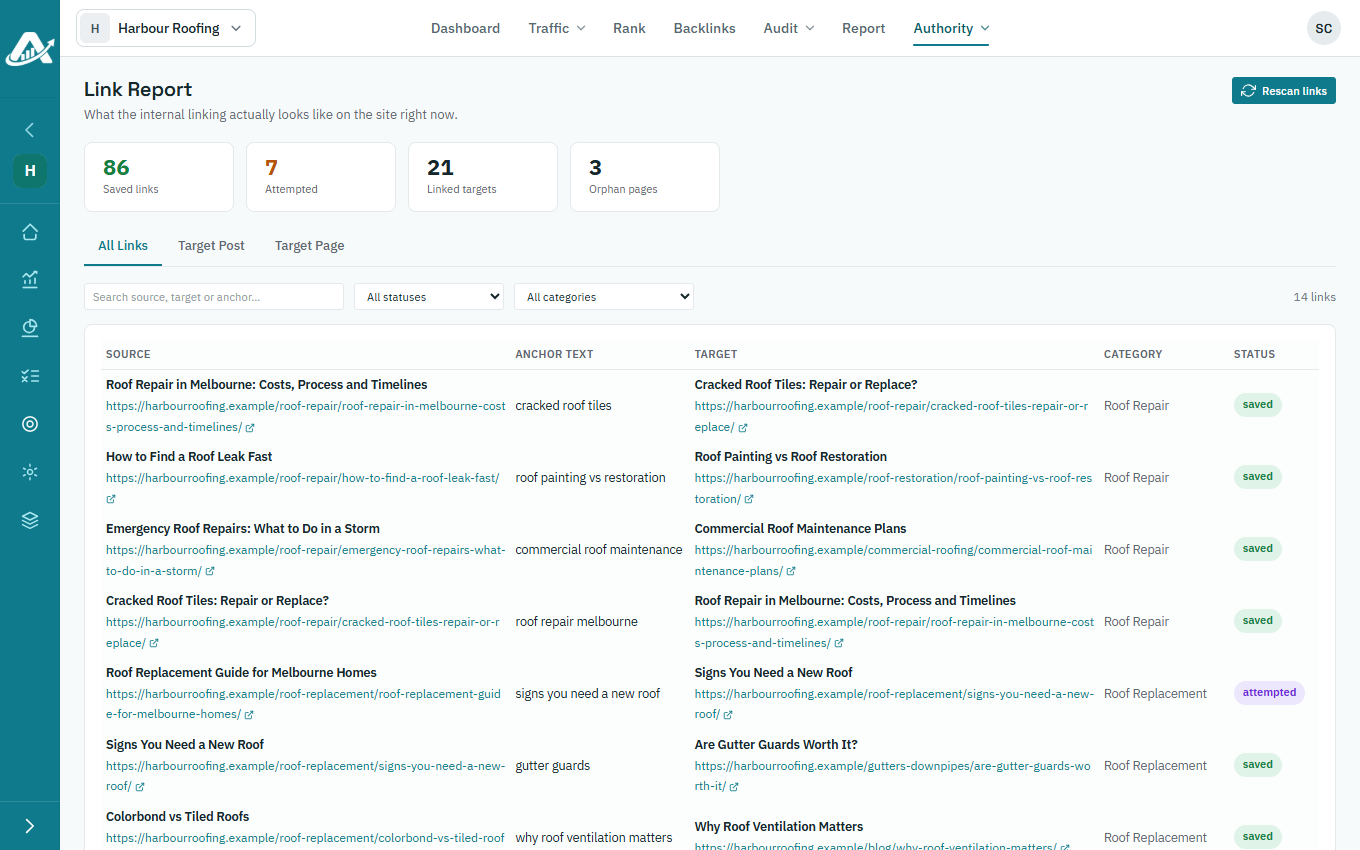
An orphan page is one that no other page on the site links to, which makes it hard for visitors and search engines to find. The Link Report shows the site’s internal links and how many orphan pages it has.
Steps
-
Open the client’s project, go to Authority › Link Report and click Rescan links to bring the report up to date.
-
Check the Orphan pages count at the top.
-
To find them, open Target Post or Target Page and click the Linked heading to sort. Anything with no links pointing to it is an orphan. Give it links with Internal Linking or Link to Page.
-
To see every link and its link text, open All Links.