
You can edit an article here and publish the changes to the client’s WordPress site when you’re ready. Until you publish, the live site stays as it is.
Steps
-
Open the client’s project and go to Authority › Content Library.
-
Click the three dots at the end of the article’s row, then Edit content.
-
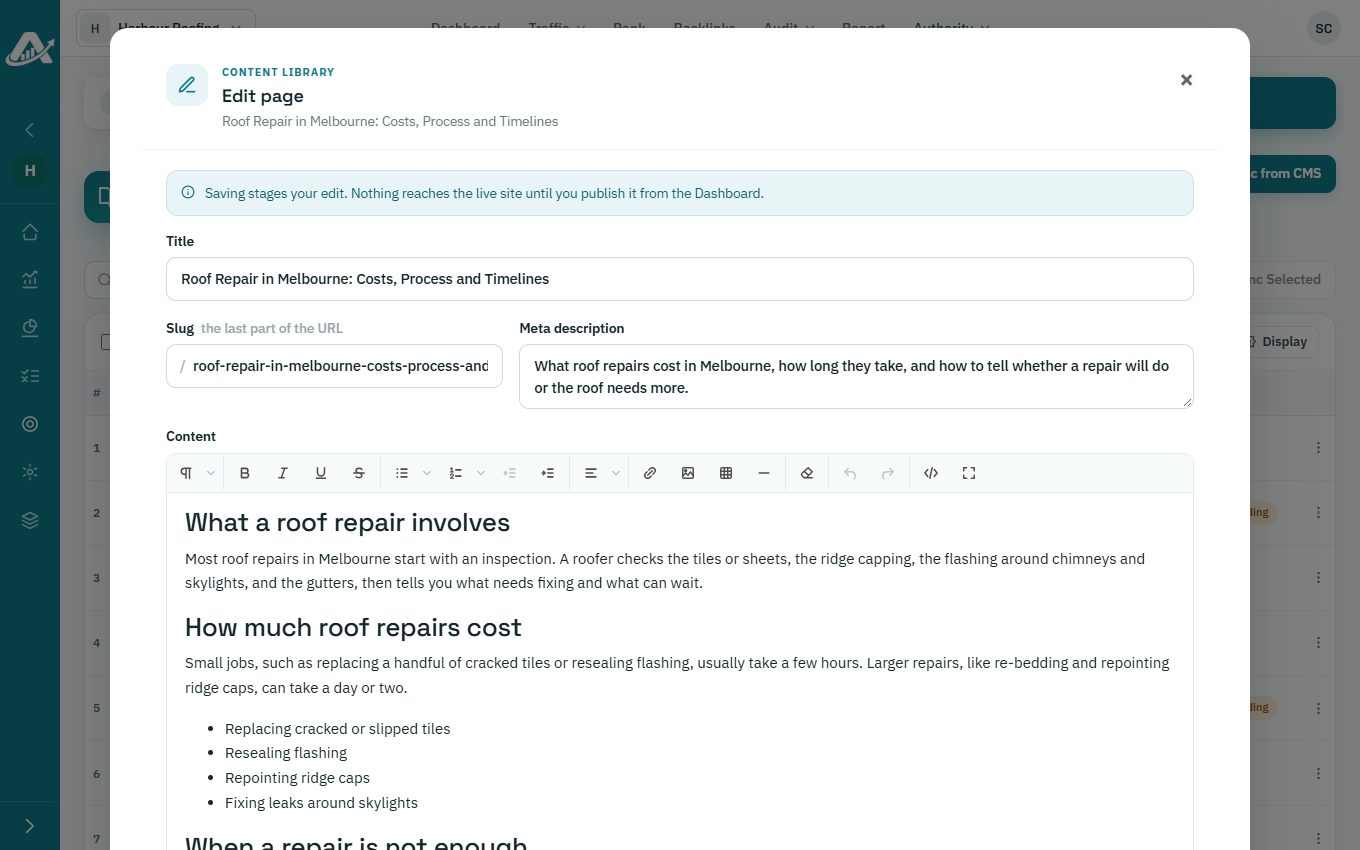
Change the title, slug, meta description or text, then click Stage changes.
-
In the article’s Changes column, click pending to check your changes. Click Discard next to any you don’t want.
-
Click Publish to live site.
Troubleshooting
- If a change fails to publish, the Changes column shows Failed. Click it to see why, check the WordPress connection in Content settings, then click Retry publish.