
The traffic dashboards show the dates you pick, and compare them with earlier periods for you.
Steps
-
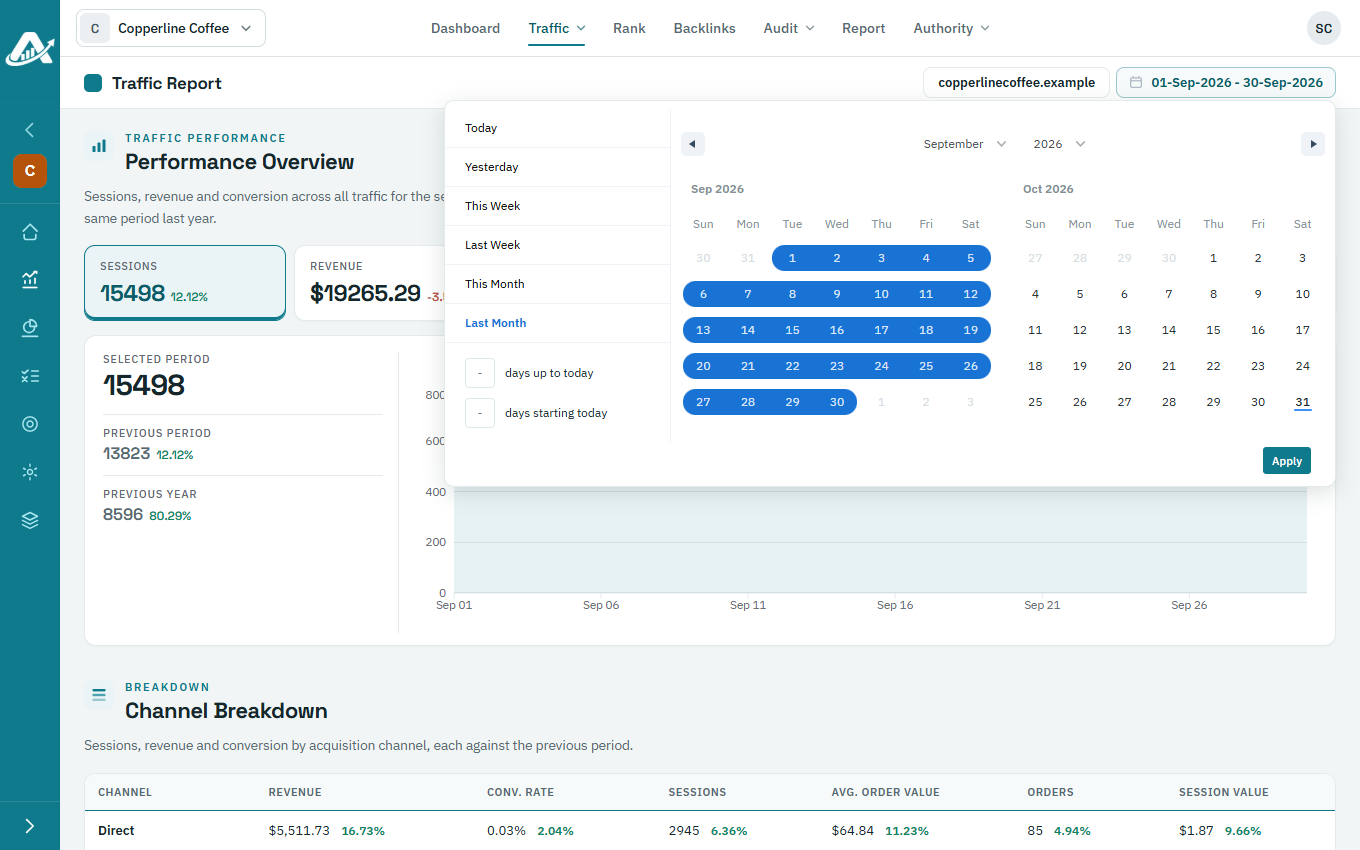
On any traffic dashboard, click the dates at the top right.
-
On the calendar, click the first day and then the last day you want, or choose a ready-made range such as Last Month, and click Apply.
-
Each figure now shows three values: the Selected Period, the Previous Period (the same length of time just before it) and the Previous Year (the same dates a year earlier).