
Invite colleagues by email. They join your workspace with the role you choose and work on your plan. By default, only the workspace owner and admins can invite people.
Steps
-
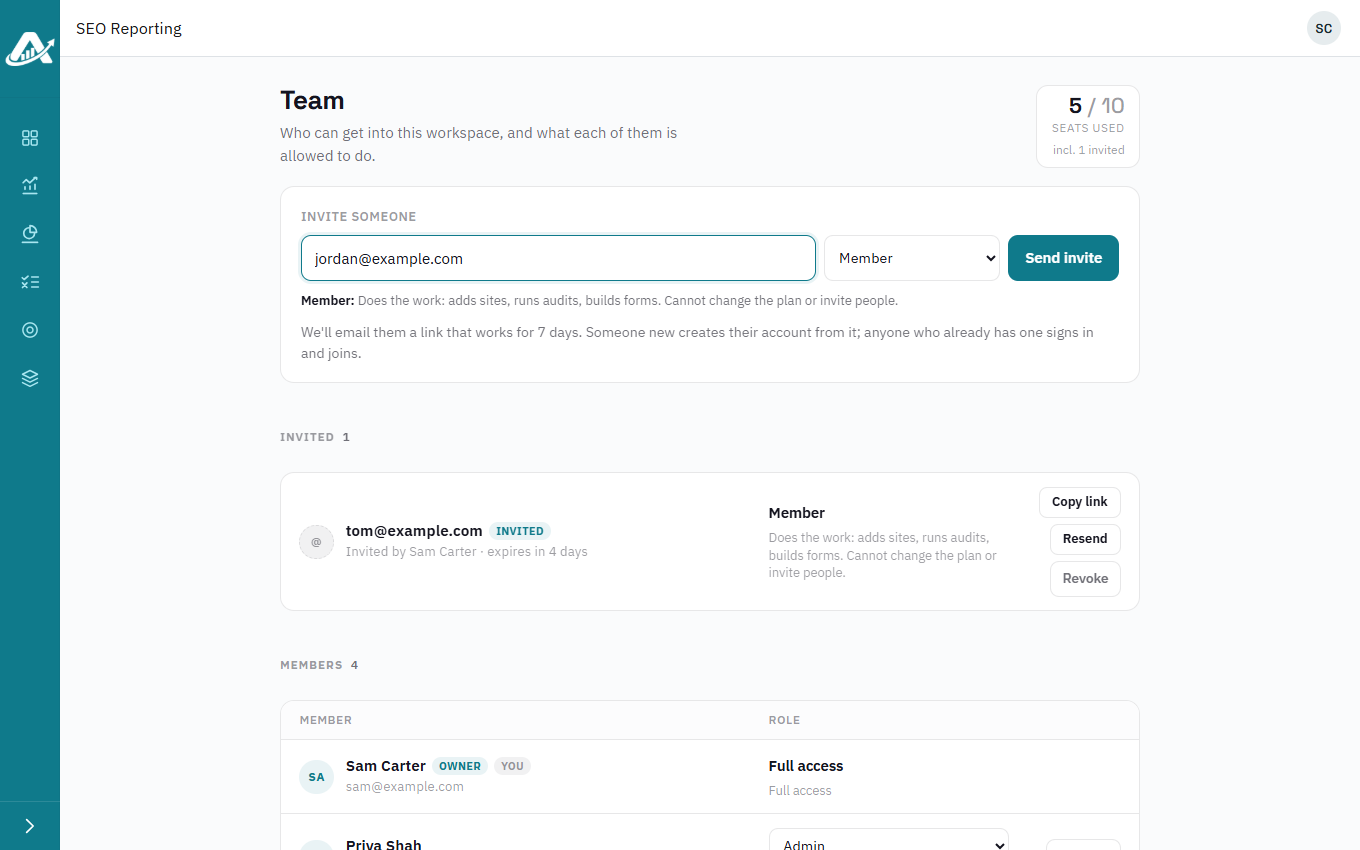
Click your picture or initials in the top-right corner, then Team & Roles.
-
Under Invite someone, enter their email address and choose a role. If you’re not sure which, see What can each team role do? Owner, Admin, Member and Viewer.
-
Click Send invite. They’ll get an email with a link to join, which works for 7 days.
Troubleshooting
- If they didn’t get the email, find them under Invited and click Resend. Or click Copy link and send them the link yourself.
- If every seat on your plan is taken, click See your plan to add more.