
You can change your password in Settings. If you signed up with Google, you can add a password there too, so you can log in either way.
Steps
-
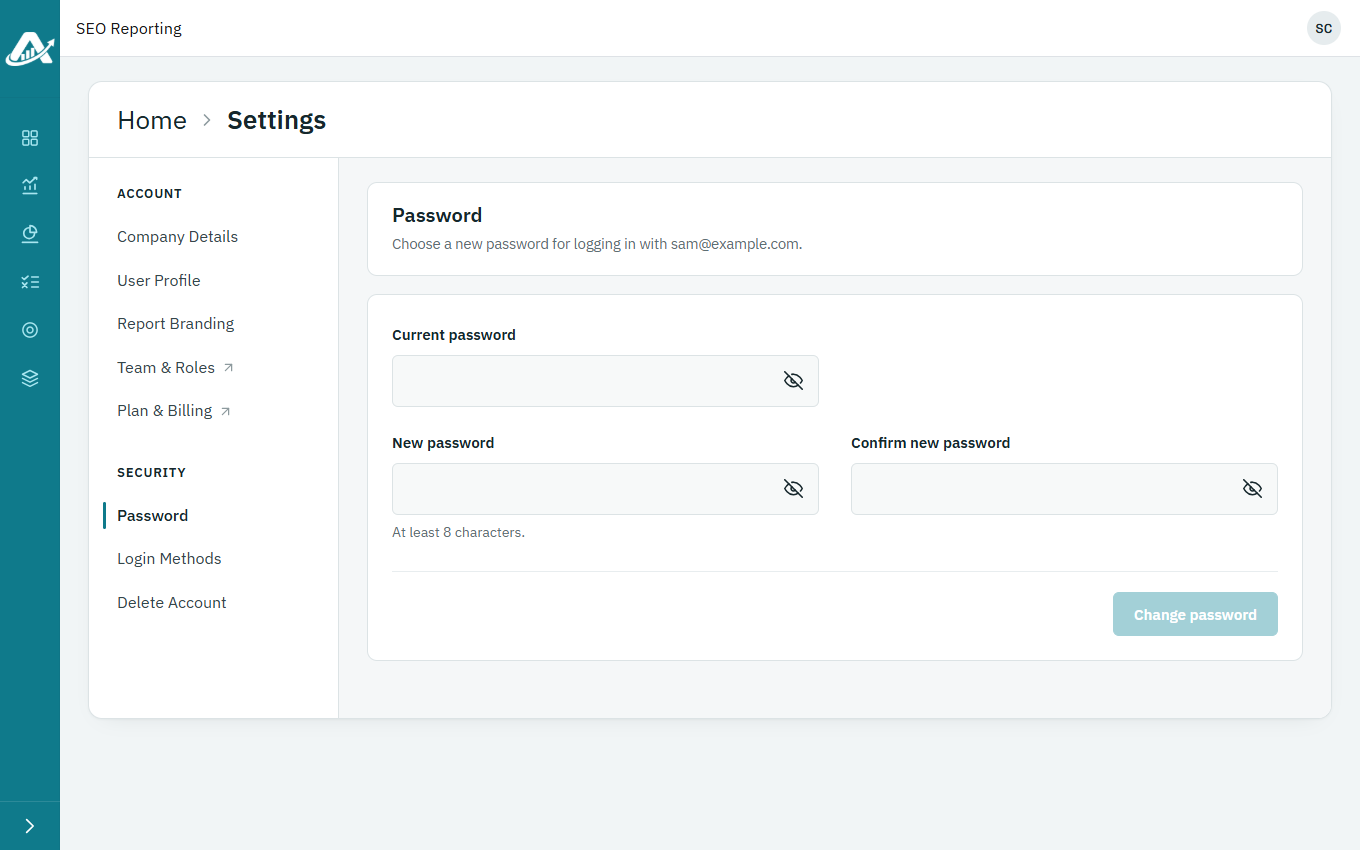
Click your picture or initials in the top-right corner, then Profile, and open Password.
-
To change your password, enter your current password and your new one twice, then click Change password.
-
To add a password to an account you created with Google, click Email me a link. Open the email, click the link and choose your password.
Troubleshooting
- If you’ve forgotten your current password, log out and click Forgot your password? on the login page.