
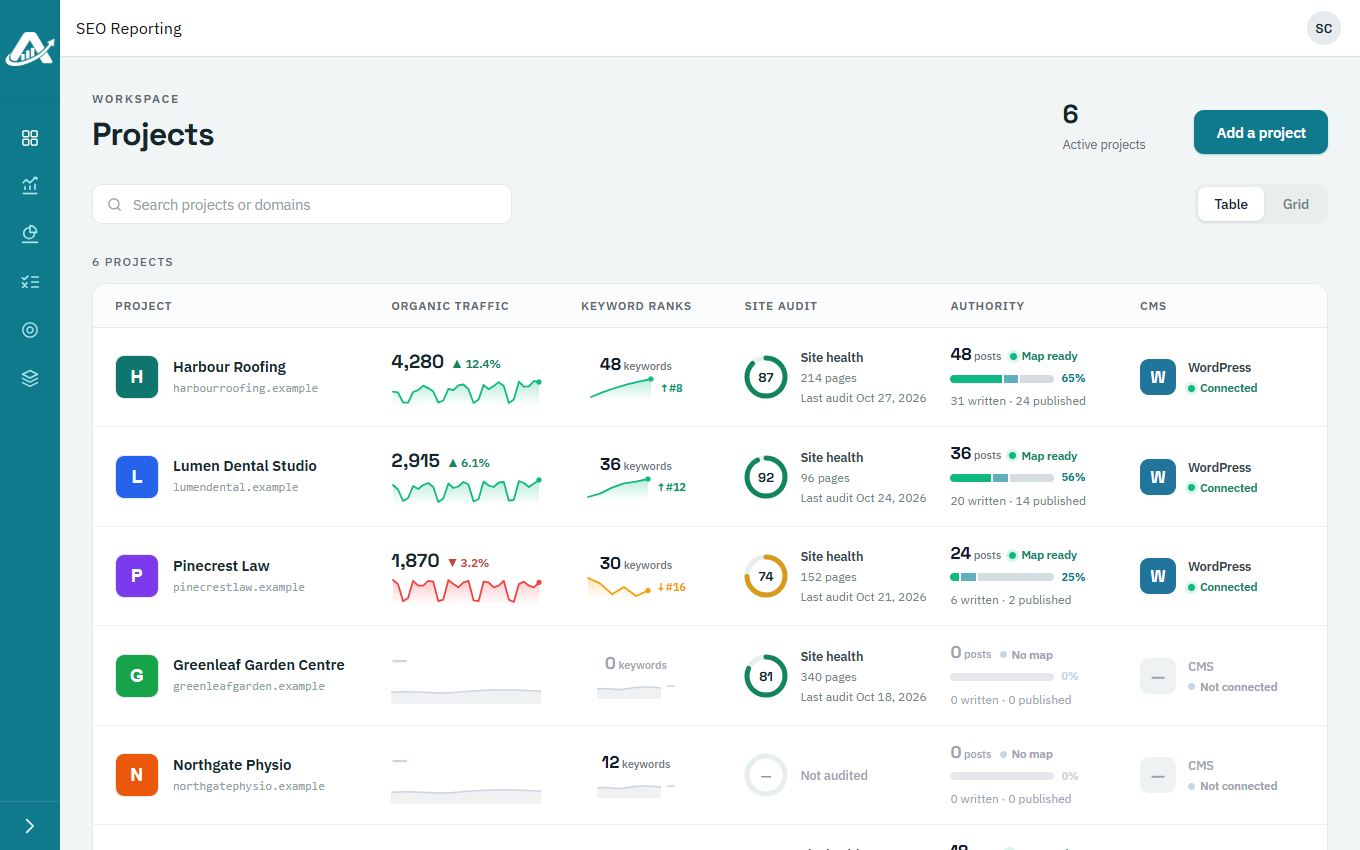
The Projects page lists all your clients, with a quick health check for each: organic traffic, keyword rankings, site audit score, content progress, and whether the website is connected for publishing.
Steps
-
Click Projects in the sidebar. A dash in a column means that service isn’t set up for the client yet.
-
To find a client, type their name or website in the search box. Table and Grid change the layout.
-
Point at a project to see shortcuts for anything not set up yet, such as Connect GA4 or Add keywords.

-
Click a project to open it.